![EatClub Plate Logo-10.png]](https://sales.eatclub.com.au/hs-fs/hubfs/EatClub%20Plate%20Logo-10.png?height=50&name=EatClub%20Plate%20Logo-10.png)
1. Accessing Your Workspace
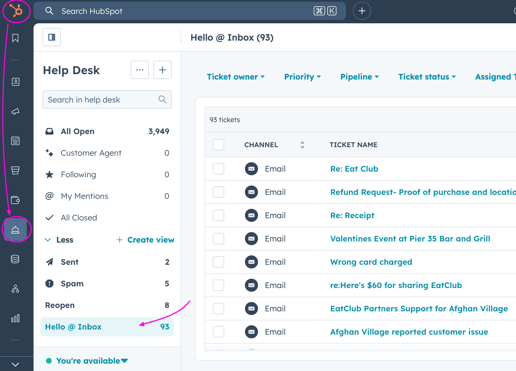
- Navigate to: HubSpot → Help Desk→ “Hello Inbox” view.
- Focus: This view is filtered for email tickets only that are currently open.
- Sequence: Work through tickets chronologically (oldest first).
When you see it's urgent for a live redemption / order or a venue listing this requires immediate action
2. Triage
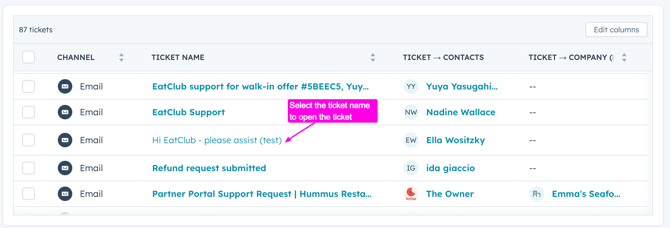
Click on the 'Ticket Name' to open the ticket.
3. Data Integrity (Before You Reply)
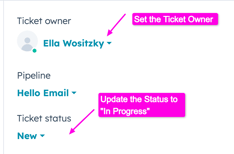
Once you open a ticket, use the Right-Hand Side (RHS) panel to confirm details. This step is critical for accurate reporting.
- Assign Ownership: Set the Ticket Owner to yourself.
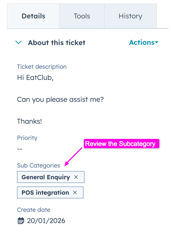
- Categorise: Review the Subcategory. If the current selection doesn't accurately describe the request, select the correct option from the dropdown.
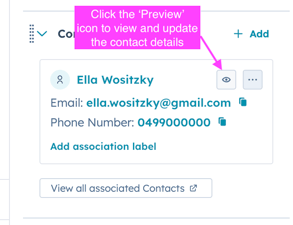
- Update Contact Details:
- Open the small contact panel.
- Ensure the Phone Number field is populated (use the "Phone Number" field, not "Mobile").
- Link the Account: If the customer emailed from an unrecognised address, search for their existing EatClub account using the "Add" button in the Contact section and link it. This ensures a unified customer history.
4. Responding to the Customer
- Draft Your Reply: Type your response directly in the HubSpot editor. Ignore AI suggestions for now; write a clear, professional response and sign off as usual.
- Send & Sync: Click Send.
- Outcome: The ticket status automatically moves to In Progress.
- Outcome: The corresponding email in the Gmail inbox is marked as "Read," signalling to the team that it has been actioned.
5. Closing & Resolution
- Close the Ticket: Once the issue is fully resolved, manually change the Ticket Status to Closed.
- Feedback Loop: Closing the ticket triggers an automated feedback survey to the customer to measure resolution quality.
6. Managing Reopened Tickets
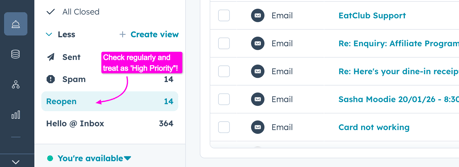
- Detection: If a customer replies to a closed ticket, it will automatically move to the "Reopened" view.
- Priority: Treat reopens as High Priority. They indicate the original issue wasn't fully resolved.
- Ownership: The ticket will remain assigned to the original agent. Check this view continuously throughout your shift.
Key Principles
- HubSpot First: Always reply via HubSpot, never directly from Gmail.
- Data First: Complete the contact details and categorisation before sending your reply.
- Focus: Prioritise new incoming emails and reopens; the existing backlog is being managed separately.